Entering a delivery
Typing an invoice in, and finalising it onto the sheet.
On Deliveries, tap New delivery:
- Supplier: start typing and pick from the outlet's suppliers.
- Delivery date, from the calendar.
- Delivery reference: the invoice number.
- Total due: type it either excluding or including VAT, and the other is worked out at the outlet's rate.
- Lines: find each item in Find an item to add, by name or code, and put in the quantity and unit cost. The unit cost starts at the item's cost price. Dozens items take quantities like 1:6.
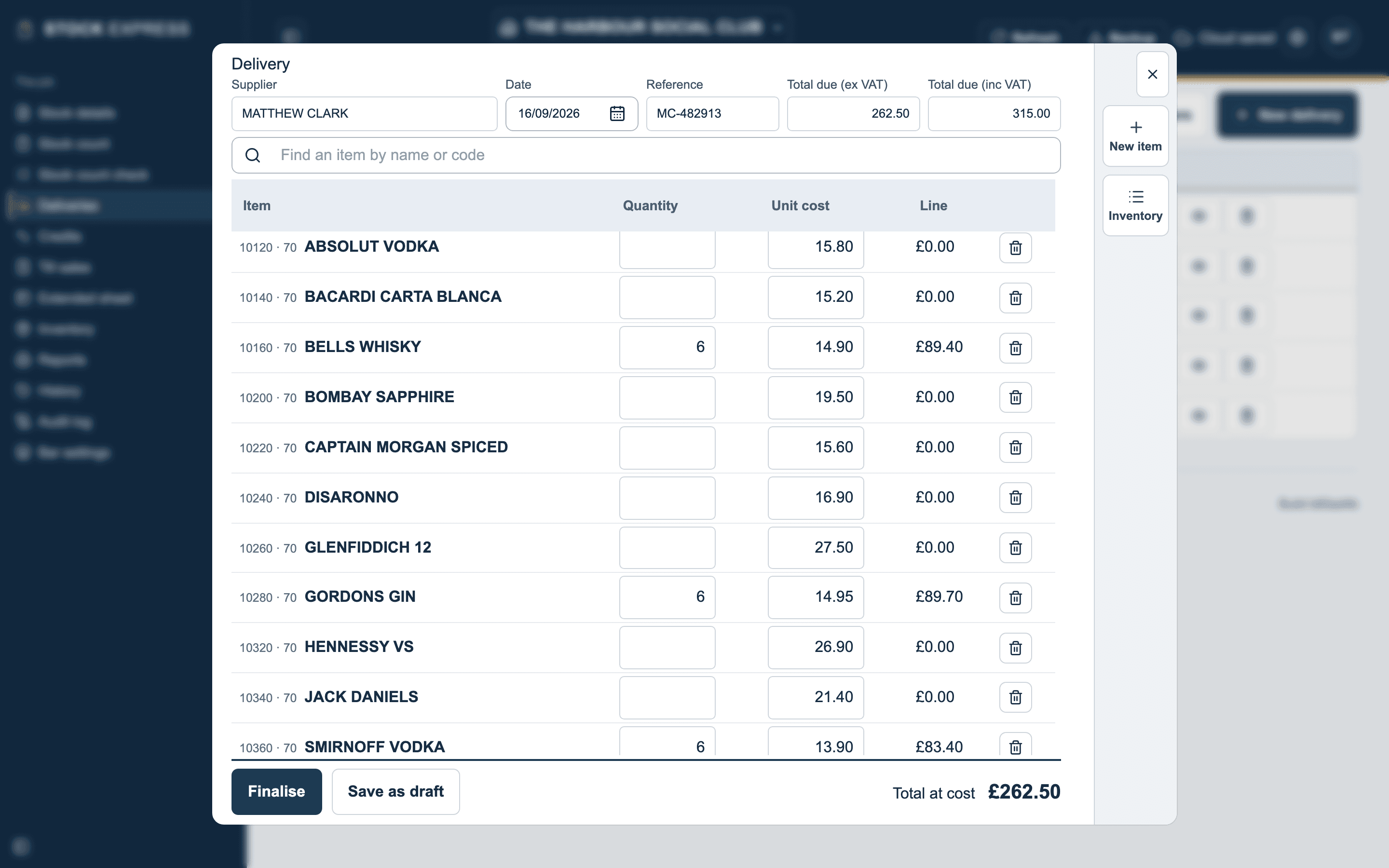
The running Total at cost shows how the lines compare with the total due.
A supplier's usual items are listed for you
Once you have finalised a delivery from a supplier, their next one opens with everything they have delivered before already listed, at the price you last paid. Fill in the quantity of what came this time; a line left empty counts for nothing, as on the supplier's own note.
Items not on the sheet
An item on the price list but not on this period's sheet can be added from the window's Inventory button, and a brand new item with New item.
Finalise or save as a draft
- Finalise puts the lines on the sheet as purchases, and makes each line's unit cost the item's new cost price. It only lights up once the delivery is complete and its lines add up to the total due; if not, it says what is missing or how far out the lines are.
- Save as draft keeps a half-entered delivery to finish later. A draft puts nothing on the sheet and changes no prices. Closing the window keeps what you typed as a draft too.
Rounding
If the invoice's pennies do not come out, add the ROUNDING line: £1 a unit, so its quantity is the pence. It can go below nought.
Want to see this with one of your own outlets? Book a demo.