Counting each bar
Each bar's count, its items, its takings and its own prices.
Choose the bar in the bar list at the top, then count it as you would any outlet. See Counting.
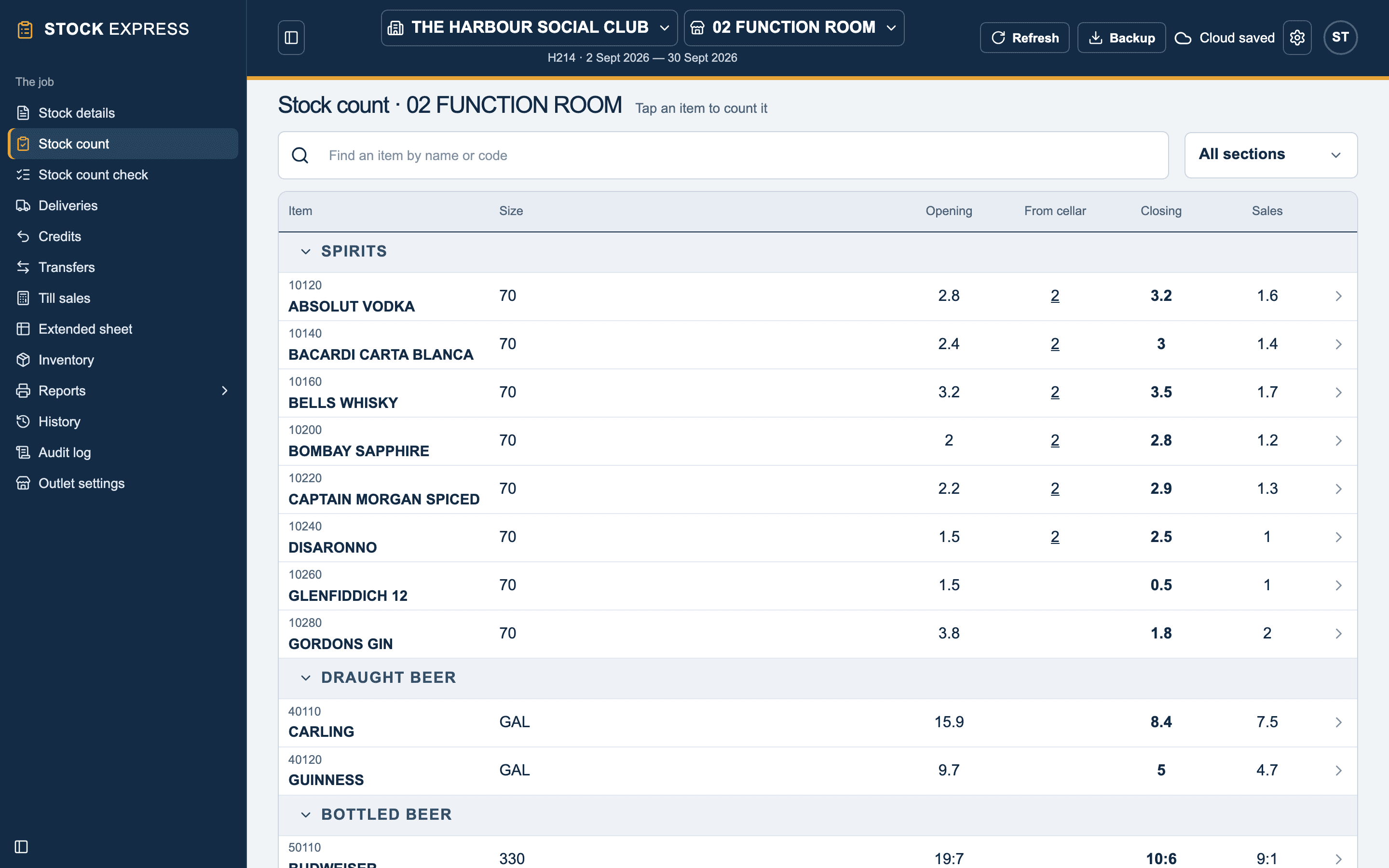
Each bar's Stock count shows only the items that bar stocks, with its own opening, closing and sales. When you reach the end of a bar's count, Next bar → opens the next one.
The items a bar stocks
On Inventory, each item shows which bars it is on, and how many of it are counted in each, with All bars in total:
- Tap Add to sheet to put it on the bar you are on.
- Tap Take off to take it off that bar.
The price list is the outlet's, so an item is set up once and put on as many bars as stock it.
Each bar's takings
Choose the bar, then type its Total receipts and Till reconciliation on Stock details, with its adjustments and allowances. Each bar's result uses only its own takings.
The dates, job number and VAT rate are the outlet's. Change them on any bar's Stock details and every bar has them.
Each bar's deliveries
A delivery or credit note entered with a bar chosen is that bar's purchases. In a house with a cellar, enter deliveries on the cellar, and the bars get their stock from it by transfer.
A bar's own prices
Every bar sells at the outlet's selling prices, unless you give it one of its own. Open the item from the bar, and type Selling price in that bar. It is marked own on the bar's sheets.
- A bar with its own price keeps it when the outlet's price goes up.
- Use the outlet's puts the bar back on the outlet's price.
- A price typed on a bar's Extended sheet is that bar's own, and the outlet's stays as it was.
Want to try this with one of your own outlets? Start for free.