Setting up the bars
Making an outlet Multi-bar, adding and naming its bars, and going back to Single bar.
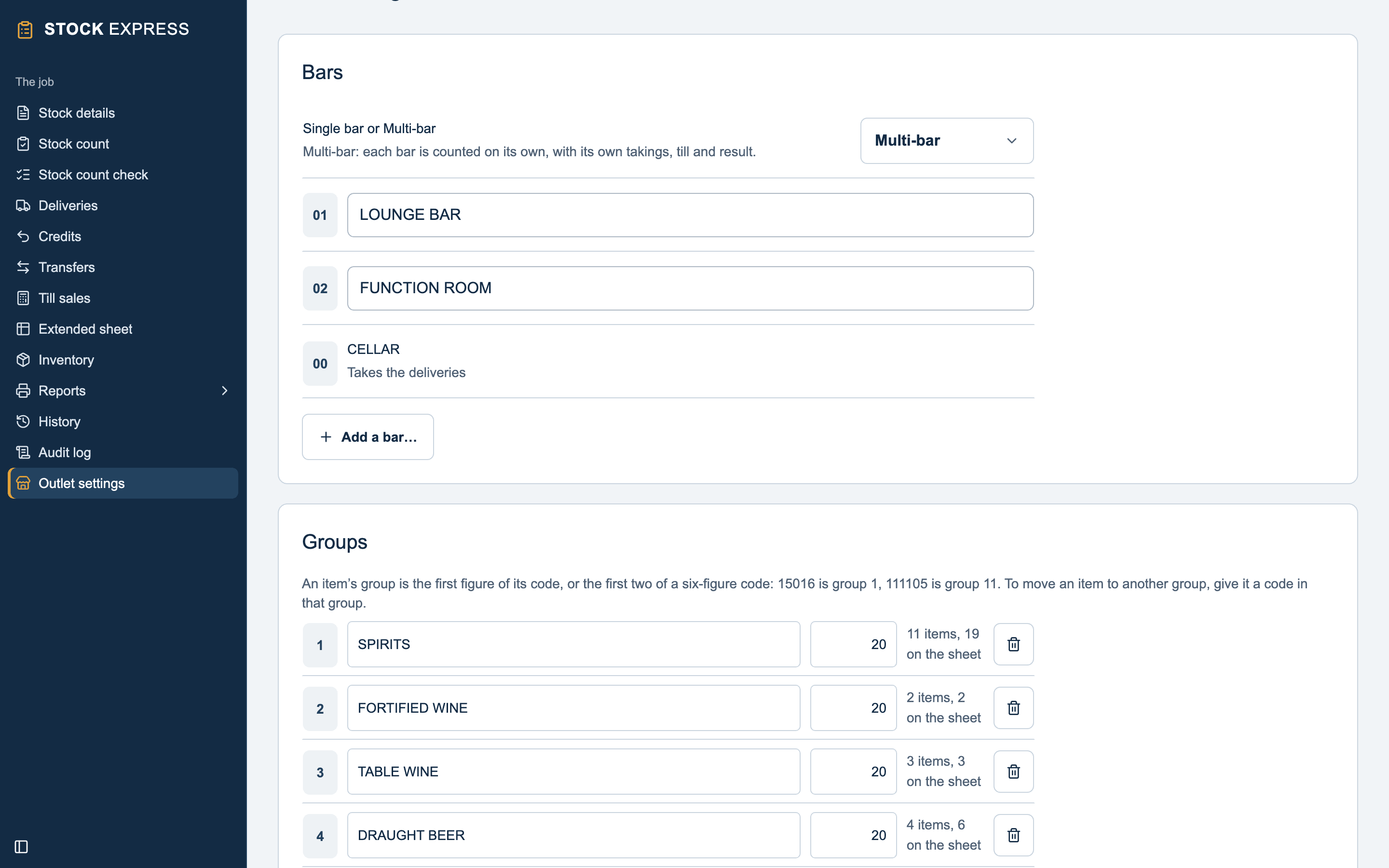
Making an outlet Multi-bar
On Outlet settings, under Bars, change Single bar or Multi-bar to Multi-bar.
The outlet's own figures become bar 01, named after the outlet. Nothing already counted, delivered or taken changes: 01 is the bar you have been counting all along. Rename it in its box, such as LOUNGE BAR.
A new outlet can start Multi-bar too: New client asks Single bar or Multi-bar.
Adding a bar
Tap Add a bar…, here or at the foot of the bar list at the top. Choose A bar, give it a name and tap Add. It takes the next free number, 02, then 03 and so on, and opens ready to count.
A new bar starts with nothing on its sheet. Put on it the items it stocks. See Counting each bar.
To rename a bar, type over its name under Bars.
Adding a cellar
If the house takes its deliveries into a cellar and sends them out to the bars, add a cellar: Add a bar…, then A cellar. It is 00 CELLAR. See The cellar.
A Single bar outlet has Add a cellar… instead. Adding one makes the outlet Multi-bar, with its own bar as 01.
Going back to Single bar
Change Single bar or Multi-bar back to Single bar. You can only do this while the outlet has just bar 01 and no cellar: it says why if not. The outlet is then exactly as it was before.
Bringing a multi-bar house in from PSSA
Import from PS Stock Auditor brings a multi-bar house in as one outlet, with each of its bars. A house with a Mainstock comes in with its cellar, and its Cellar Ledger as transfers. See Coming from PS Stock Auditor.
Want to try this with one of your own outlets? Start for free.